
Image: Extending Display and Edit Methods
Published: January 10, 2026 at 9:53:46 PM UTC
Last updated: January 10, 2026 at 9:54:06 PM UTC
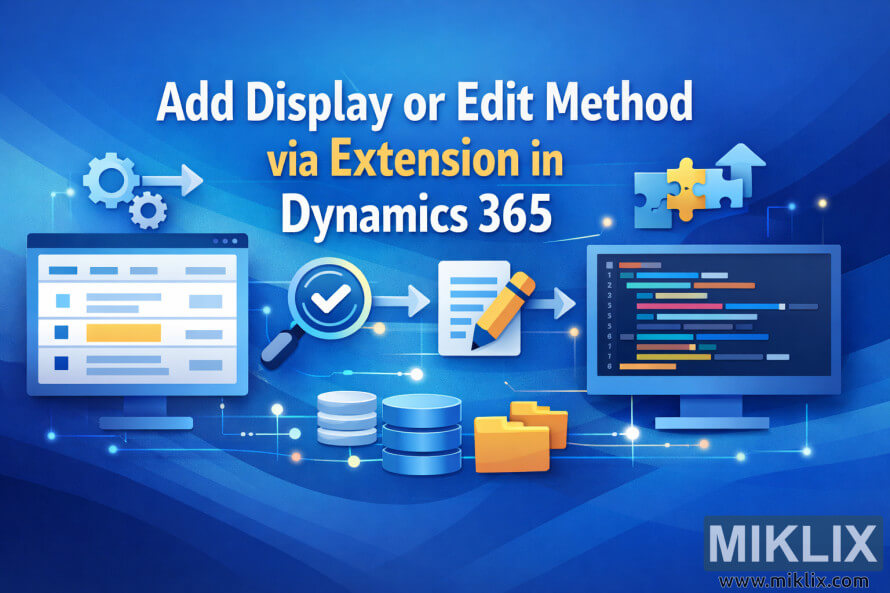
Clean vector illustration for a Dynamics 365 blog post, showing how display or edit methods can be added via extensions using modular cards flowing into a core application window.
Available versions of this image
The image files available for download below are less compressed and higher resolution - and as a result of that, higher quality - than the images embedded in articles and pages on this website, which are more optimized for file size in order to reduce bandwidth consumption.
Regular size (1,536 x 1,024)
Large size (3,072 x 2,048)
Very large size (4,608 x 3,072)
Extra large size (6,144 x 4,096)
Comically large size (1,048,576 x 699,051)
- Still uploading... ;-)
Image description
The image is a wide, landscape-oriented vector illustration designed for a technical blog header. It uses a clean, flat style with soft gradients and plenty of white space so that the concept is easy to grasp even at a glance. In the center sits a large, generic application window representing a business system. The window has no real labels or product-specific UI, only neutral placeholders such as blocks and lines to suggest forms and lists without risking inaccuracy.
From the left side of the scene, a separate panel of smaller cards floats toward the main window. Each card represents an independent module or feature. They are drawn as simple rounded rectangles with subtle shadows, giving a feeling of modular building blocks. One of these cards contains a puzzle-piece-shaped icon, symbolizing an extension. The puzzle piece is highlighted with a slightly brighter accent color to indicate that it is the element being added.
Between the modular cards and the main application window, a set of curved arrows points inward. The arrows are labeled only with abstract symbols like plus signs and small gears, reinforcing the idea of “extend” rather than “replace.” The arrows visually connect the puzzle-piece card into the larger window, showing that new behavior is attached externally instead of editing the original core.
Inside the main window, the placeholders are arranged in a way that suggests a list of records on one side and a detail or edit panel on the other. A small checkmark icon appears in the corner of one block, implying that a new display or edit method has been successfully added. Nearby, a tiny wrench or gear icon indicates configuration or customization, but no real product interface is shown.
The background is light and uncluttered, with soft blue and teal shapes fading into white. These abstract shapes frame the illustration without drawing attention away from the central message. The overall palette relies on calm blues, teals, and neutral grays, which are commonly associated with enterprise software but remain generic.
Typography is minimal: the blog title is implied by an empty header bar at the top of the main window rather than written text, keeping the image future-proof. The composition clearly communicates the concept of adding or extending functionality in a safe, non-invasive way: small, independent extension elements flowing into a stable core application, with visual cues for display and edit behavior, but no technical specifics that could become outdated.
The image is related to: Add Display or Edit Method via Extension in Dynamics 365